> For the complete documentation index, see [llms.txt](https://docs.menanak47.com/llms.txt). Markdown versions of documentation pages are available by appending `.md` to page URLs; this page is available as [Markdown](https://docs.menanak47.com/plugins/ak47_lib/interface/context-menu.md).
# Context-Menu
### 🧭 Menu Types: Context vs. Menu
Before diving into the functions, it's important to understand the two distinct ways you can display data using `ak47_lib`:
1. Context Menus (`RegisterContext` & `ShowContext`): Best for static lists of actions where the user clicks an option to trigger an event, server event, or function. Usually mouse-driven.
2. Interactive Menus (`RegisterMenu` & `ShowMenu`): Best for complex interactions like checkboxes, side-scrolling lists, and real-time navigation feedback. Completely keyboard-driven (Arrow Keys, Enter, Backspace).
***
### 🛠️ Core Functions
#### `RegisterContext`
Registers a mouse-driven context menu. This data is cached and can be called anytime using `ShowContext`.
Syntax:
```lua
exports.ak47_lib:RegisterContext(data)
```
Example:
```lua
exports.ak47_lib:RegisterContext({
id = 'player_actions',
title = 'Player Actions',
position = 'top-right',
canClose = true,
options = {
{
title = 'Heal Player',
description = 'Restores health to **100%**',
icon = 'heart',
iconColor = '#ff5555',
onSelect = function() print("Heal button pressed!") end
},
{
title = 'Give Weapon',
description = 'Triggers a client event',
icon = 'gun',
event = 'my_custom_client_event',
args = { weapon = 'WEAPON_PISTOL', ammo = 250 }
}
}
})
```
#### `RegisterMenu`
Registers a keyboard-driven interactive menu. Features a master callback that triggers when the user presses `Enter` on an item.
Syntax:
```lua
exports.ak47_lib:RegisterMenu(data, callback(selected, scrollIndex, args))
```
Example:
```lua
exports.ak47_lib:RegisterMenu({
id = 'settings_menu',
title = 'Server Settings',
position = 'top-left',
onClose = function(keyPressed)
print('Menu closed using: ' .. tostring(keyPressed))
end,
options = {
{ label = 'Godmode', icon = 'shield', checked = false, args = { setting = 'godmode' } },
{ label = 'Time of Day', icon = 'clock', values = {'Morning', 'Noon', 'Night'}, defaultIndex = 2 }
}
}, function(selected, scrollIndex, args)
print(('Selected Item: %s, Scroll Index: %s'):format(selected, tostring(scrollIndex)))
if args then print('Args: ', json.encode(args)) end
end)
```
#### Display & Hide Functions
| **Function** | **Description** | **Example Usage** |
| ------------- | ------------------------------------------------------------------------------- | ------------------------------------------------------- |
| `ShowContext` | Opens a registered context menu. You can specify if it should be keyboard only. | `exports.ak47_lib:ShowContext('player_actions', false)` |
| `ShowMenu` | Opens a registered menu in strict keyboard-only mode. | `exports.ak47_lib:ShowMenu('settings_menu')` |
| `HideContext` | Closes the active context menu. | `exports.ak47_lib:HideContext(true)` |
| `HideMenu` | Closes the active interactive menu. | `exports.ak47_lib:HideMenu(true)` |
| `GetOpenMenu` | Returns the string `id` of the currently open menu, or `nil`. | `local current = exports.ak47_lib:GetOpenMenu()` |
#### `SetMenuOptions`
Dynamically updates the options of a registered menu without needing to re-register it.
Syntax:
```lua
-- Update ALL options
exports.ak47_lib:SetMenuOptions('menu_id', newOptionsTable)
-- Update a SINGLE option (e.g., updating the 2nd item)
exports.ak47_lib:SetMenuOptions('menu_id', updatedOptionData, 2)
```
***
### ⚙️ Configuration Properties
#### Menu Configuration (`data` table)
These properties are used at the root level of `RegisterContext` or `RegisterMenu`.
| **Property** | **Type** | **Description** |
| -------------- | ---------- | ------------------------------------------------------------------------------------------------------------------------------------------- |
| `id` | `string` | Required. A unique identifier for the menu. |
| `title` | `string` | The display title at the top of the menu. |
| `position` | `string` | `'top-left'`, `'top-right'`, `'bottom-left'`, `'bottom-right',` `center-left`, `center-right` |
| `canClose` | `boolean` | If `true`, the user can press ESC/Backspace to close. |
| `disableInput` | `boolean` | If `true`, disables all player controls while the menu is open. |
| `options` | `table` | Required. An array of option objects (see below). |
| `onClose` | `function` | Triggers when the menu is closed (receives the key pressed). |
| `onSelected` | `function` | (*RegisterMenu only*) Triggers when an item is hovered. |
| `onSideScroll` | `function` | (*RegisterMenu only*) Triggers when a side-scrolling list changes. |
| `onCheck` | `function` | (*RegisterMenu only*) Triggers when a checkbox is toggled. |
| `style` | `table` |
Custom react styling. style = { right = '5rem', top = '10rem', }
|
#### Option Configuration (Items inside `options`)
| **Property** | **Type** | **Description** |
| ----------------- | --------- | -------------------------------------------------------------------------------------------- |
| `title` / `label` | `string` | Required. The main text of the button. (`title` is preferred for Context, `label` for Menu). |
| `description` | `string` | Secondary text displayed as a tooltip or subtext. |
| `icon` | `string` | FontAwesome icon name (e.g., `'car'`, `'shield'`) or an image URL/Path. |
| `iconColor` | `string` | Hex or RGB color for the icon (e.g., `'#ff5555'`). |
| `iconAnimation` | `string` | FontAwesome animation class (e.g., `'spin'`, `'beat'`). |
| `disabled` | `boolean` | Grays out the button and prevents interaction. |
| `readOnly` | `boolean` | Prevents hovering/clicking, but doesn't look completely disabled. |
| `progress` | `number` | `0-100`. Displays a progress bar inside the button. |
| `colorScheme` | `string` | Color used for the progress bar. |
| `args` | `table` | Custom data passed to events/callbacks when this item is interacted with. |
| `close` | `boolean` | Set to `false` to keep the menu open after clicking. Defaults to `true`. |
#### Advanced Option Properties (Context Menus)
* `event` (`string`): Triggers a client event when clicked. Passes `args`.
* `serverEvent` (`string`): Triggers a server event when clicked. Passes `args`.
* `onSelect` (`function`): Anonymous function executed when clicked. Passes `args`.
* `menu` (`string`): The `id` of another menu to open when clicked (Submenu).
#### Advanced Option Properties (Interactive Menus)
* `checked` (`boolean`): Turns the option into a Checkbox.
* `values` (`table`): Array of strings or `{label, description}` objects. Turns the option into a Side-Scroller (Left/Right arrows).
* `defaultIndex` (`number`): The starting index (1-based) for a `values` list.
#### Metadata Panel (Player/Vehicle Stats)
You can attach a beautiful side-panel to any option by adding `image` and `metadata`.
```lua
{
label = 'Inspect Vehicle',
icon = 'magnifying-glass',
image = 'https://docs.fivem.net/vehicles/t20.webp',
metadata = {
{ label = 'Model', value = 'T20' },
{ label = 'Plate', value = 'LIB47DEV' },
{ label = 'Engine Health', value = '85%', progress = 85, colorScheme = '#fbc531' }
}
}
```
***
### 📝 Usage Example
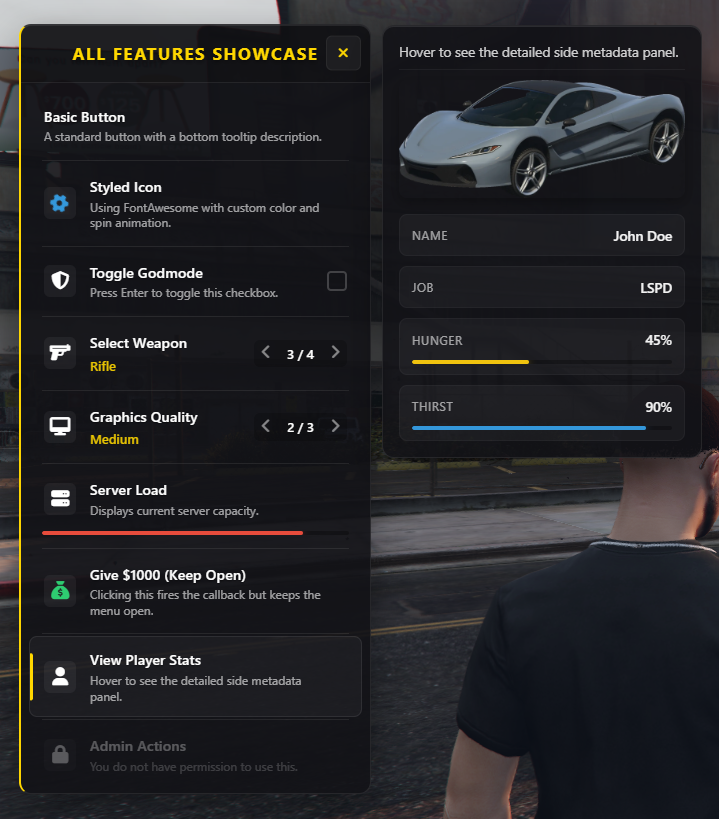
Here is a comprehensive example demonstrating submenus, side-scrolling, checkboxes, and metadata all working together seamlessly:
Context:
```lua
-- exports['ak47_lib']:RegisterContext({}) or
Lib47.RegisterContext({
id = 'main_context_menu',
title = 'Player Actions',
position = 'top-right',
canClose = true,
onExit = function()
print("User closed the main menu with ESC")
end,
options = {
{
title = 'Heal Player',
description = 'Restores health to **100%**',
icon = 'heart',
iconColor = '#ff5555',
onSelect = function() print("Heal button pressed!") end
},
{
title = 'Vehicle Management',
description = 'Open vehicle options menu',
icon = 'car',
menu = 'sub_context_menu',
arrow = true
},
{
title = 'Downloading Data...',
description = 'Extracting files from server',
icon = 'spinner',
iconAnimation = 'spin',
progress = 65,
colorScheme = '#00a8ff',
readOnly = true
},
{
title = 'Admin Panel',
description = 'You do not have permission',
icon = 'lock',
disabled = true
},
{
title = 'Give Weapon',
description = 'Triggers a client event to give a weapon',
icon = 'nui://ak47_qb_inventory/web/build/images/weapon_pistol.png',
event = 'my_custom_client_event',
args = { weapon = 'WEAPON_PISTOL', ammo = 250 }
},
{
title = 'Pay Parking Ticket',
description = 'Deducts $500 via server event',
icon = 'file-invoice-dollar',
iconColor = '#4cd137',
serverEvent = 'my_custom_server_event',
args = { id = 101, amount = 500 }
},
{
title = 'Inspect Vehicle Details',
description = 'Hover to view vehicle statistics',
icon = 'magnifying-glass',
image = 'https://docs.fivem.net/vehicles/t20.webp',
metadata = {
{ label = 'Model', value = 'T20' },
{ label = 'Plate', value = 'LIB47DEV' },
{ label = 'Engine Health', value = '85%', progress = 85, colorScheme = '#fbc531' },
{ label = 'Fuel Level', value = '20%', progress = 20, colorScheme = '#e84118' }
},
onSelect = function() print("Inspected vehicle!") end
},
}
})
-- exports['ak47_lib']:RegisterContext({}) or
Lib47.RegisterContext({
id = 'sub_context_menu',
title = 'Vehicle Options',
position = 'top-right',
menu = 'main_context_menu',
onBack = function() print("User clicked the back arrow to return to Player Actions") end,
options = {
{
title = 'Toggle Engine',
icon = 'power-off',
iconColor = '#e1b12c',
onSelect = function() print("Engine toggled!") end
},
{
title = 'Lock Doors',
icon = 'key',
onSelect = function() print("Doors locked!") end
}
}
})
RegisterCommand('testmenu', function()
-- Set keyboardOnly to true to test the arrow keys without mouse focus
exports['ak47_lib']:ShowContext('main_context_menu')
-- or
Lib47.ShowContext('main_context_menu')
end)
```
Menu:
```lua
-- Register the comprehensive menu
-- exports['ak47_lib']:RegisterMenu({})
Lib47.RegisterMenu({
id = 'comprehensive_test_menu',
title = 'All Features Showcase',
position = 'top-left', -- 'top-left', 'top-right', 'bottom-left', 'bottom-right'
disableInput = false, -- Set to true to freeze player movement completely
canClose = true, -- Set to false to force the user to make a selection
-- Triggers when the user presses ESC/Backspace to close the menu
onClose = function(keyPressed)
print(('Menu closed! Key pressed: %s'):format(keyPressed or 'N/A'))
end,
-- Triggers every time the user moves their selection up/down the list
onSelected = function(selected, secondary, args)
print(('Hovered Item: %s | Secondary Value: %s | Args: %s'):format(selected, tostring(secondary), json.encode(args)))
end,
-- Triggers instantly when the user presses Left/Right on a side-scroll option
onSideScroll = function(selected, scrollIndex, args)
print(('Scrolled Item: %s | New Scroll Index: %s'):format(selected, scrollIndex))
end,
-- Triggers instantly when the user presses Enter on a Checkbox option
onCheck = function(selected, checked, args)
print(('Toggled Checkbox: %s | Is Checked: %s'):format(selected, tostring(checked)))
end,
-- The actual menu items
options = {
-- 1. Standard Button
{
label = 'Basic Button',
description = 'A standard button with a bottom tooltip description.'
},
-- 2. Button with Custom Icon Styling
{
label = 'Styled Icon',
description = 'Using FontAwesome with custom color and spin animation.',
icon = 'gear',
iconColor = '#3498db',
iconAnimation = 'spin'
},
-- 3. Checkbox Button
{
label = 'Toggle Godmode',
description = 'Press Enter to toggle this checkbox.',
icon = 'shield-halved',
checked = false,
args = { setting = 'godmode' }
},
-- 4. Simple String Scroll List
{
label = 'Select Weapon',
icon = 'gun',
values = {'Pistol', 'SMG', 'Rifle', 'Shotgun'},
defaultIndex = 3, -- Starts on 'Rifle' (Lua uses 1-based indexing, the code auto-converts it to JS 0-based!)
args = { category = 'weapons' }
},
-- 5. Object Scroll List (Dynamic Descriptions per item)
{
label = 'Graphics Quality',
icon = 'desktop',
values = {
{ label = 'Low', description = 'Optimized for potato PCs.' },
{ label = 'Medium', description = 'Balanced performance and visuals.' },
{ label = 'Ultra', description = 'Maximum visual fidelity.' }
},
defaultIndex = 2
},
-- 6. Progress Bar Option (Read Only)
{
label = 'Server Load',
description = 'Displays current server capacity.',
icon = 'server',
progress = 85,
colorScheme = '#e74c3c', -- Red color for high load
readOnly = true -- Prevents hovering/clicking
},
-- 7. Persistent Button (Does NOT close the menu)
{
label = 'Give $1000 (Keep Open)',
description = 'Clicking this fires the callback but keeps the menu open.',
icon = 'sack-dollar',
iconColor = '#2ecc71',
close = false,
args = { action = 'give_money' }
},
-- 8. Metadata Side Panel (Combines your old UI feature seamlessly)
{
label = 'View Player Stats',
description = 'Hover to see the detailed side metadata panel.',
icon = 'user',
image = 'https://docs.fivem.net/vehicles/t20.webp', -- Image at top of side panel
metadata = {
{ label = 'Name', value = 'John Doe' },
{ label = 'Job', value = 'LSPD' },
{ label = 'Hunger', value = '45%', progress = 45, colorScheme = '#f1c40f' },
{ label = 'Thirst', value = '90%', progress = 90, colorScheme = '#3498db' }
}
},
-- 9. Disabled Button
{
label = 'Admin Actions',
description = 'You do not have permission to use this.',
icon = 'lock',
disabled = true
}
}
}, function(selected, scrollIndex, args)
-- Main Callback when a user PRESSES ENTER on a valid item
print('--- MENU ITEM SELECTED ---')
print('Selected Item Index:', selected)
if scrollIndex then
print('Scroll Index Chosen:', scrollIndex)
end
if args then
print('Arguments:', json.encode(args))
-- Example interaction
if args.action == 'give_money' then
print("Action triggered: Gave player money without closing the menu!")
end
end
end)
-- Command to open the menu
RegisterCommand('testnewmenu', function()
-- ShowMenu implicitly sets keyboard-navigation to true, matching typical ox_lib behavior
exports['ak47_lib']:ShowMenu('comprehensive_test_menu')
-- or
Lib47.ShowMenu('comprehensive_test_menu')
end)
```